Guides

How to Add an AI Chatbot to Your Website Without Code (2026 Guide)

Updated July 25, 2026 · 9 min read

A website with an embedded chat widget bubble in the corner

Most guides on adding an AI chatbot to a website start with a warning: block out an afternoon, learn a flow builder, write dozens of training phrases, and hope the bot doesn't sound robotic. That's true for the last generation of chatbot tools. It isn't true anymore.

This guide covers what's actually involved today: how a website-crawling chatbot works, why it skips the flow-builder step entirely, and the exact install steps for the four platforms most small businesses run on.

Why older chatbot tools feel like a project

Traditional chatbot builders ask you to model a conversation before the bot has ever seen your business. You drag boxes onto a canvas, write "intents," attach sample phrases to each one, and test until the bot stops misfiring. That works, eventually, but it's build work, closer to writing software than answering a question a customer already asked you a hundred times over email.

The newer approach flips the order: point the tool at your website, let it read what's already there, and let the model answer from that instead of a hand-built decision tree. If your site already explains your pricing, your hours, your return policy, and what you actually do, the chatbot doesn't need you to re-type any of it.

The no-code setup, step by step

Step one: paste your website URL into the tool. A crawler reads your public pages the way a search engine would, building a knowledge base out of your actual site content rather than a form you fill in by hand.

Step two: wait for the crawl to finish. For a typical small business site this takes well under a minute, not because it's skipping pages, but because reading and embedding text is fast. The slow part in older tools was always the manual setup, not the technology.

Step three: customize the widget's appearance. A basic setup lets you set the accent color, upload a logo, and write the opening greeting, so the bot visually belongs on your site instead of looking like a bolted-on demo.

Step four: copy one script tag and paste it into your site. This is the only "technical" step in the entire process, and it's a single line, not a codebase.
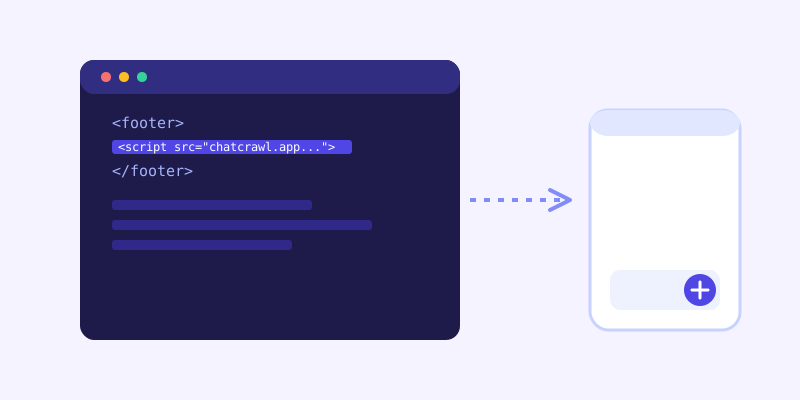
A script tag snippet being pasted into a website's footer code

Installing the embed code by platform

WordPress. Avoid editing theme files directly unless you're on a child theme, since a theme update will wipe the change otherwise. Install a free header/footer plugin like WPCode, add the snippet as an HTML Snippet, set the insertion location to Site Wide Footer, and activate it. No FTP, no editor.

Shopify. Go to Online Store → Themes → Edit code, open `theme.liquid`, and paste the snippet just before the closing `` tag. Shopify doesn't have the child-theme risk WordPress does, but duplicate the theme first if you want an easy rollback.

Wix. Use the built-in Custom Code section (Settings → Custom Code → Add Custom Code), paste the snippet, set it to load on all pages, and place it in the Body - End position.

Squarespace. Settings → Advanced → Code Injection, paste the snippet into the Footer field, save. Squarespace applies it site-wide automatically.

What to watch for after launch

A chatbot trained purely on a one-time crawl goes stale the moment your pricing or hours change. Look for a tool that re-crawls on a schedule, and check whether it tells you when it couldn't answer something. That unanswered-question list is the single most useful piece of feedback you'll get out of the whole setup, because it shows you exactly what your site is missing in your customers' own words.

Getting it right the first time

The fastest install still fails if the underlying site is thin. A chatbot can only answer from what's actually on the page, so if your pricing lives in a PDF nobody linked, or your FAQ is three years out of date, the bot will inherit those gaps. Spend ten minutes confirming your key pages (pricing, hours, policies, what you actually do) are current before you paste the URL in, and the rest of the setup genuinely takes minutes.

Frequently asked questions

Do I need to know how to code to add a chatbot to my website?

No. A crawl-based chatbot only requires pasting one script tag into your site, which every major platform (WordPress, Shopify, Wix, Squarespace) supports through a plugin or built-in code-injection field, with no editing of theme files required.

How long does it take to set up an AI chatbot for a small business website?

With a tool that crawls your site automatically, the whole process, from pasting your URL to a live embedded widget, typically takes a few minutes: under a minute for the crawl itself, plus a minute or two to customize the widget and paste the embed code.

Will the chatbot know about my business automatically?

Yes, if it's built on your existing website content rather than a manual training step. The bot reads your public pages the same way a visitor would, so anything already explained on your site (pricing, hours, policies, services) becomes something it can answer without you re-entering it anywhere.

What happens if the chatbot doesn't know the answer to a question?

A well-built chatbot should tell you, not guess. Look for tools that log unanswered questions so you can see exactly what visitors are asking that your site doesn't currently cover, and ideally one that checks your live site again in real time before giving up rather than immediately saying it doesn't know.

Try it yourself

Paste your URL and get a trained chatbot on ChatCrawl →

Build my chatbot

More articles

A chat bubble with a question mark turning into a checkmarkProduct & AI

Why Your Website Chatbot Keeps Saying "I'm Not Sure" (And How to Fix It)

Most AI chatbots answer from a snapshot of your site taken whenever they were last trained. Here's why that causes constant "I'm not sure" replies, and what a chatbot that checks live instead actually looks like.

Read article →
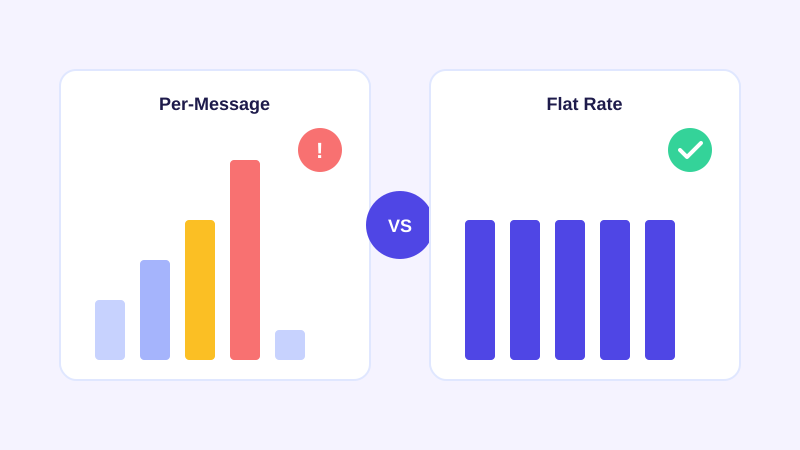
A jagged, rising bar chart under a warning icon next to a row of equal-height bars under a checkmarkPricing

Flat Rate vs Per Message AI Chatbot Pricing: What You're Actually Signing Up For

Most AI chatbot vendors charge by the message or conversation credit, which means your bill moves with your traffic. Here's what that actually costs you, and why flat per-plan pricing is worth comparing before you commit.

Read article →