Guides

How to Add an AI Chatbot to a Webflow, Framer, or Custom-Coded Website

Updated October 12, 2026 · 7 min read
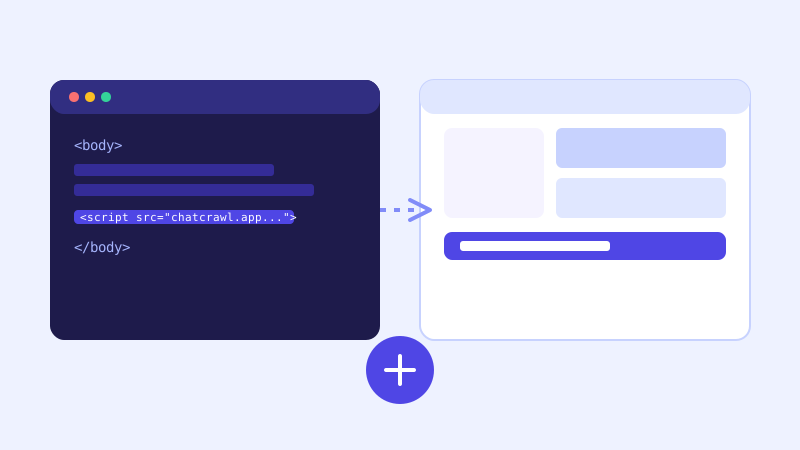
A code editor and a design tool side by side, both pointing to the same embedded chat widget

Most chatbot install guides stop at WordPress, Shopify, Wix, and Squarespace, which covers a lot of small business sites but leaves out a whole category of modern websites built on design tools like Webflow and Framer, or hand-coded with React, Next.js, or a static site generator. The install is still a single script tag in every case. Where that tag goes just depends on how the site was built.

The install is always the same snippet, in a different place

Whatever platform a site runs on, adding a chatbot comes down to the same action: get one script tag from the chatbot dashboard, and place it so it loads on every page, typically right before the closing `` tag or in a site-wide custom code area. Every platform below supports this, the only real variable is which menu that custom code area lives in.

Webflow

Open the Webflow Designer, go to the Pages panel, and set the snippet at the site level rather than on a single page: Site Settings → Custom Code → Footer Code. Paste the script there and it loads on every page of the published site without needing to touch each page individually. If you only want the widget on specific pages (a landing page but not an internal tool), use the page-level Custom Code section instead, found in that page's own settings panel. Either way, remember Webflow only applies custom code on publish, so republish the site after saving the snippet, not just save the Designer draft.

Framer

Framer's equivalent is the Site Settings → General → Custom Code panel, which has separate fields for `` and `end of ` code. Paste the script into the end of body field so it loads after the rest of the page content, then republish the site. Framer applies this site-wide by default, so a single paste covers every page unless you've deliberately scoped it per page in a specific page's own settings.

A custom-coded React or Next.js site

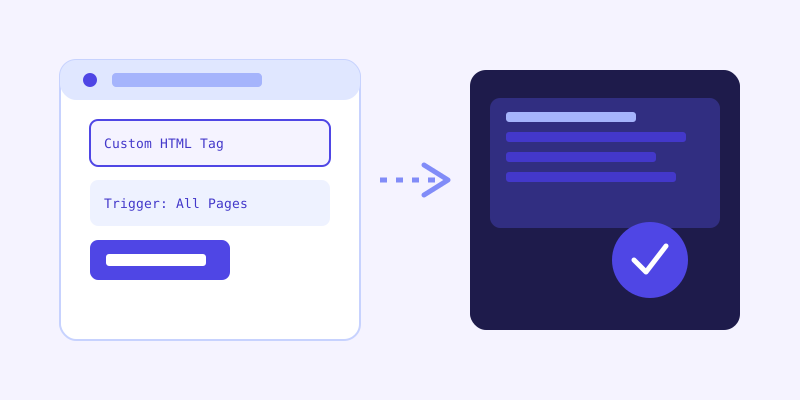
A Google Tag Manager tag container publishing a chat widget script to a live website

For a hand-built site, the cleanest approach is adding the script tag directly into your root layout so it renders on every route. In a Next.js App Router project, that means the root `layout.tsx` file, using Next's built-in `Script` component with a `strategy` of `afterInteractive` so it loads without blocking the initial page render. In a plain React single-page app, the same script tag can go directly in the `index.html` file's ``, since the whole app mounts into that one HTML shell regardless of which route is showing. The install itself hasn't changed, it's still one script tag, just placed in source code instead of a visual settings panel.

Using Google Tag Manager instead of touching code at all

If a site already has Google Tag Manager installed, a chatbot can go live without a code deployment at all. Create a new Tag in GTM, choose Custom HTML as the tag type, paste the chatbot's script snippet into it, set the trigger to All Pages, and publish the container. GTM injects the script on every page load the same way a hardcoded snippet would, which is particularly useful on a site where a marketing team doesn't have direct access to the codebase, or where a code change would normally need to wait for a developer's release cycle.

Checking that it actually loaded

After placing the snippet anywhere, confirm it's live before moving on: load the actual published site (not a design tool's preview mode, which often doesn't run custom code the same way), open the browser's developer console, and look for the chat widget bubble in the corner of the page. If it's missing, the most common cause is a snippet that got saved in a draft or page-level field but never published, or placed inside an editor's preview-only canvas that never ships to the live domain.

One snippet, no platform lock-in

The appeal of a single script-tag install is that it doesn't care what the rest of your site is built with. A business that redesigns from Squarespace to Webflow, or migrates a marketing site from WordPress to a custom Next.js app, doesn't need to re-train or reconfigure a chatbot that reads from a website crawl, it just needs to move one line of code to wherever the new platform's custom code area lives.

Frequently asked questions

Does the chatbot work differently on a custom-coded site versus WordPress?

No. The chatbot itself is identical everywhere, it reads your site through a crawl and answers from that knowledge base regardless of what the site is built with. The only difference across platforms is where the one script tag needs to be placed so it loads on every page.

Can I install the chatbot without a developer, even on a custom-built site?

Often yes, if the site already has Google Tag Manager installed. Adding the script as a Custom HTML tag set to fire on all pages gets the widget live without a code change or deployment, which works well when a marketing team doesn't have direct repository access.

Why doesn't my chat widget show up after I added the snippet in Webflow or Framer?

The most common cause is checking a design tool's preview mode instead of the actual published site, since preview canvases often don't run custom code the same way a live page does. Republish the site, then check the real live URL directly.

Where exactly should the snippet go in a Next.js app?

In the root layout file so it applies to every route, using Next's built-in Script component with an afterInteractive loading strategy so it doesn't block the initial page render. That's the Next.js equivalent of a site-wide footer snippet on a platform like WordPress.

Try it yourself

Paste your URL and get your embed snippet on ChatCrawl →

Build my chatbot

More articles

A website with an embedded chat widget bubble in the cornerGuides

How to Add an AI Chatbot to Your Website Without Code (2026 Guide)

A step-by-step walkthrough for adding a real AI chatbot to your website in minutes, no flow builder and no code required, plus exact install steps for WordPress, Shopify, Wix, and Squarespace.

Read article →
A chat bubble with a question mark turning into a checkmarkProduct & AI

Why Your Website Chatbot Keeps Saying "I'm Not Sure" (And How to Fix It)

Most AI chatbots answer from a snapshot of your site taken whenever they were last trained. Here's why that causes constant "I'm not sure" replies, and what a chatbot that checks live instead actually looks like.

Read article →